Secure SSH Login on Linux with SSH keys
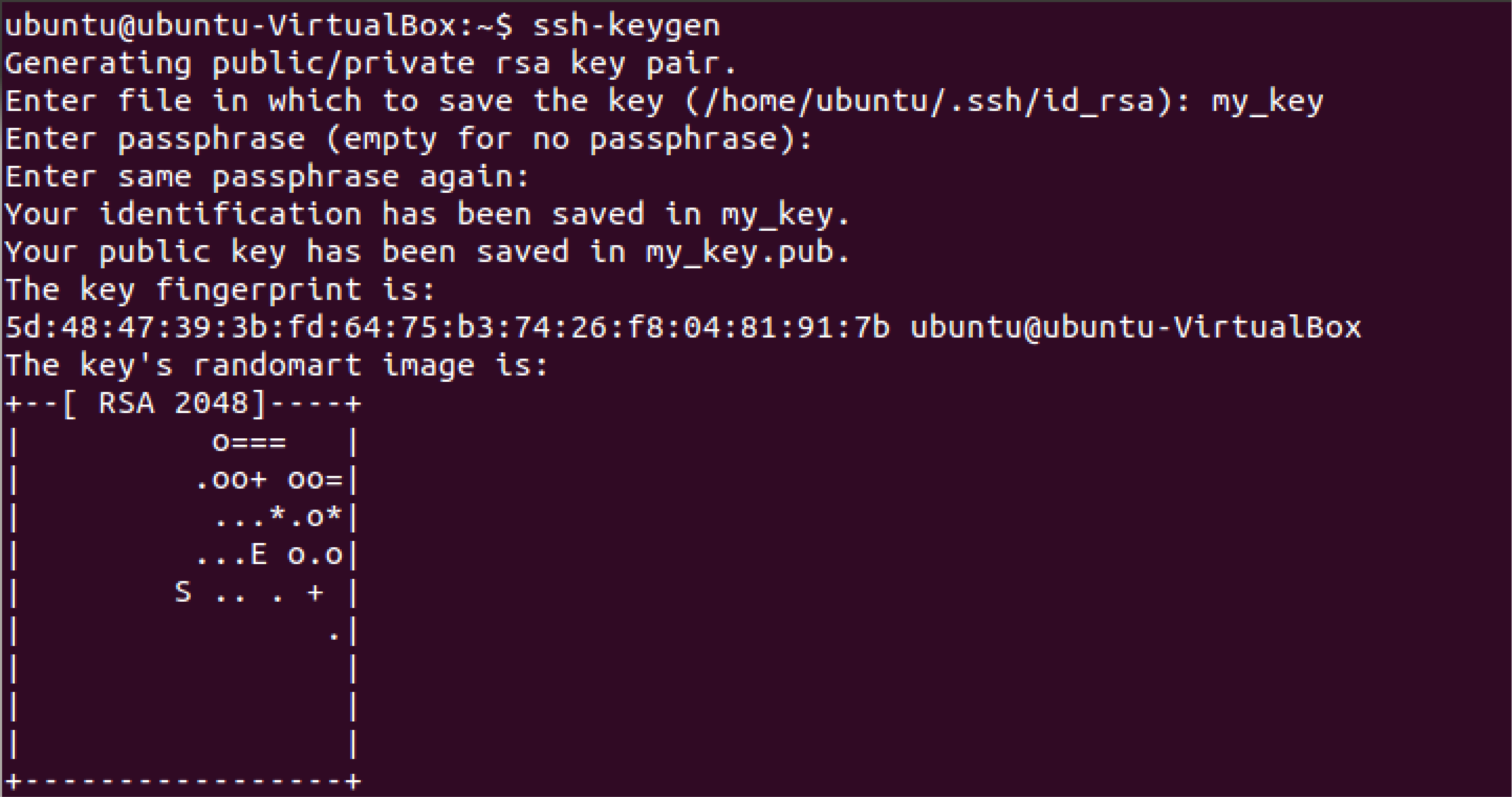
This is a brief summary of the steps required to create a secure SSH login using public-private keys on Linux server. A reference to the full guide can be found here: DigitalOcean SSH Setup Guide
Requirements:
- Linux server
- Terminal using Bash
Configuring the client
1- Generate public/private keys on the client:
ssh-keygen -t rsa
You can press enter for all prompts provided by the setup wizard.
2- Copy the private key to your server:
ssh-copy-id user@server-ip-address
Note: In this step you need to specify the user which this key will be associated with. You’ll be prompted to enter the login password for this user as well.
3- You are ready to use the key to login:
ssh user@server
Disabling Password Authentication
1- Login to your server:
ssh user@server
2- Edit SSH Daemon’s configuration file:
sudo nano /etc/ssh/sshd_config
3- Search for the line that starts with PasswordAuthentication and uncomment it if it is commented and change it to:
PasswordAuthentication no
4- Restart SSH service to apply changes:
sudo service ssh restart